> ## Documentation Index
> Fetch the complete documentation index at: https://docs.devv.ai/llms.txt
> Use this file to discover all available pages before exploring further.
# Getting started
> Start building your first AI app with Devv
## Create your first project
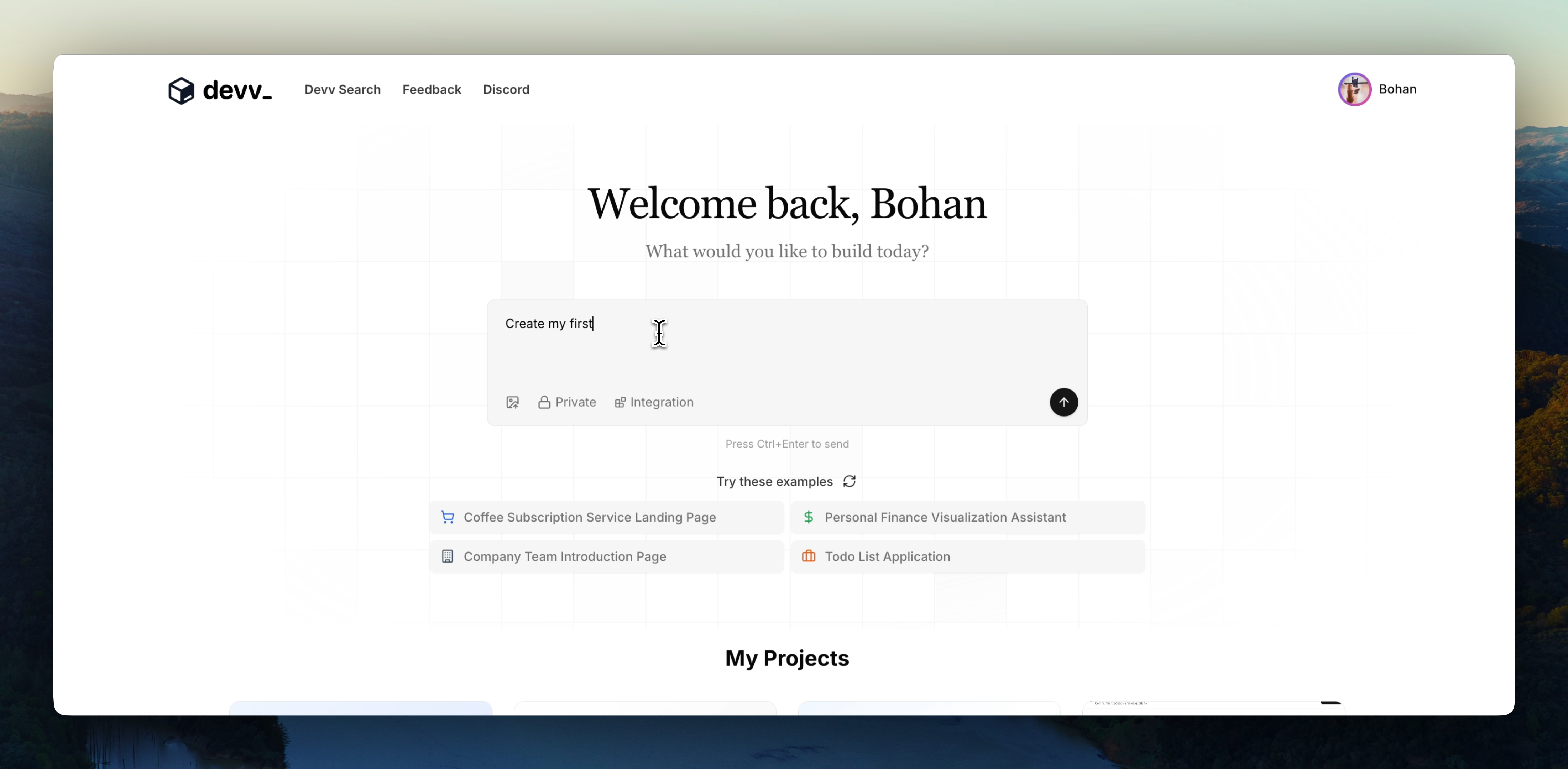
Simply input your project description into this box, and let Devv start working!
Notice:
1. You can also:
* upload images
* select Devv integrations here.
2. There are lots of [Devv Integrations](/integrations/introduction) here. Don't worry about them. You are not required to select any of them here. Indeed, Devv agent will help you select the integrations you need automatically, based on your project features.
 Devv Integration is a key point that differs Devv from other products. We
build it to help you ship your product faster, and easier. You can read
the [Integration Docs](/integrations/introduction) here to check for more
details about them.
## Editing your projects
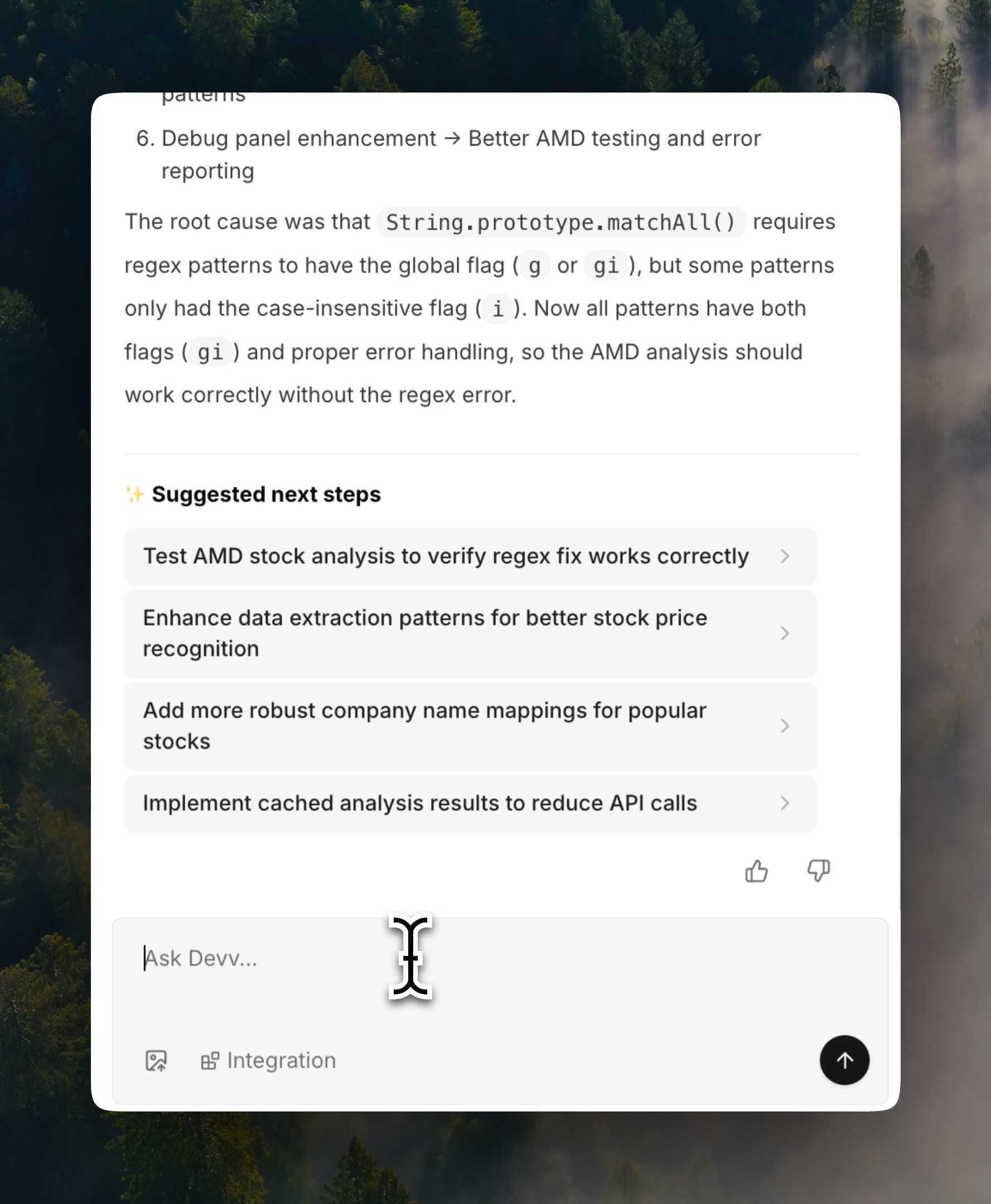
Use the followup input box to add more features and iterate your project,
you can:
Devv Integration is a key point that differs Devv from other products. We
build it to help you ship your product faster, and easier. You can read
the [Integration Docs](/integrations/introduction) here to check for more
details about them.
## Editing your projects
Use the followup input box to add more features and iterate your project,
you can:
- Click `suggested next steps` generated by AI after each
- Type your issue manually.
- Upload images.
- Select specific integration you wanna add to your project.
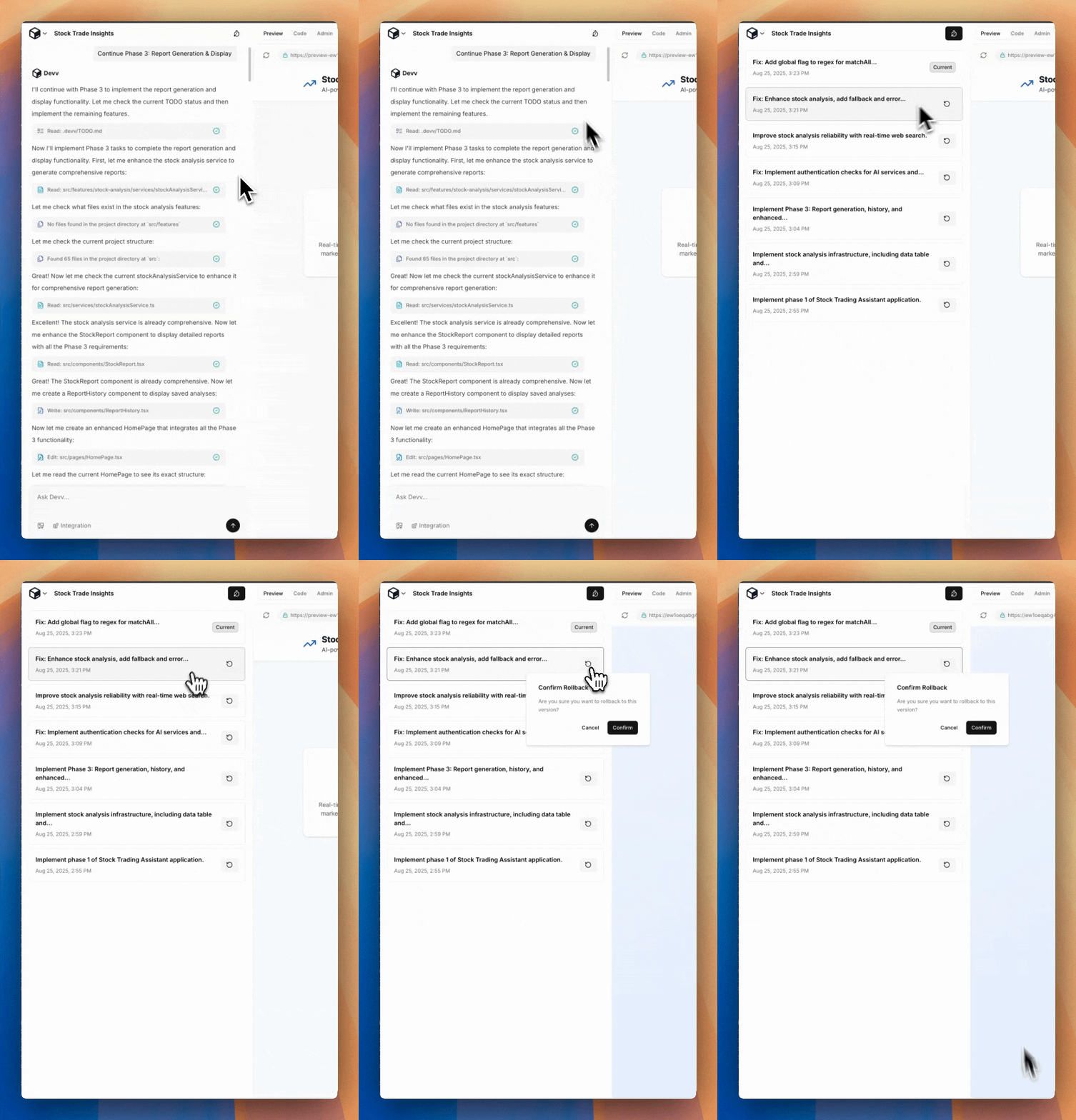
 Version control is an really important feature while building your apps.
You will rarely use it. **But when AI happens to write something totally
wrong and destroy your existing project, the best practice is revert it
manually instead of ask AI to fix it.**
Version control is an really important feature while building your apps.
You will rarely use it. **But when AI happens to write something totally
wrong and destroy your existing project, the best practice is revert it
manually instead of ask AI to fix it.**
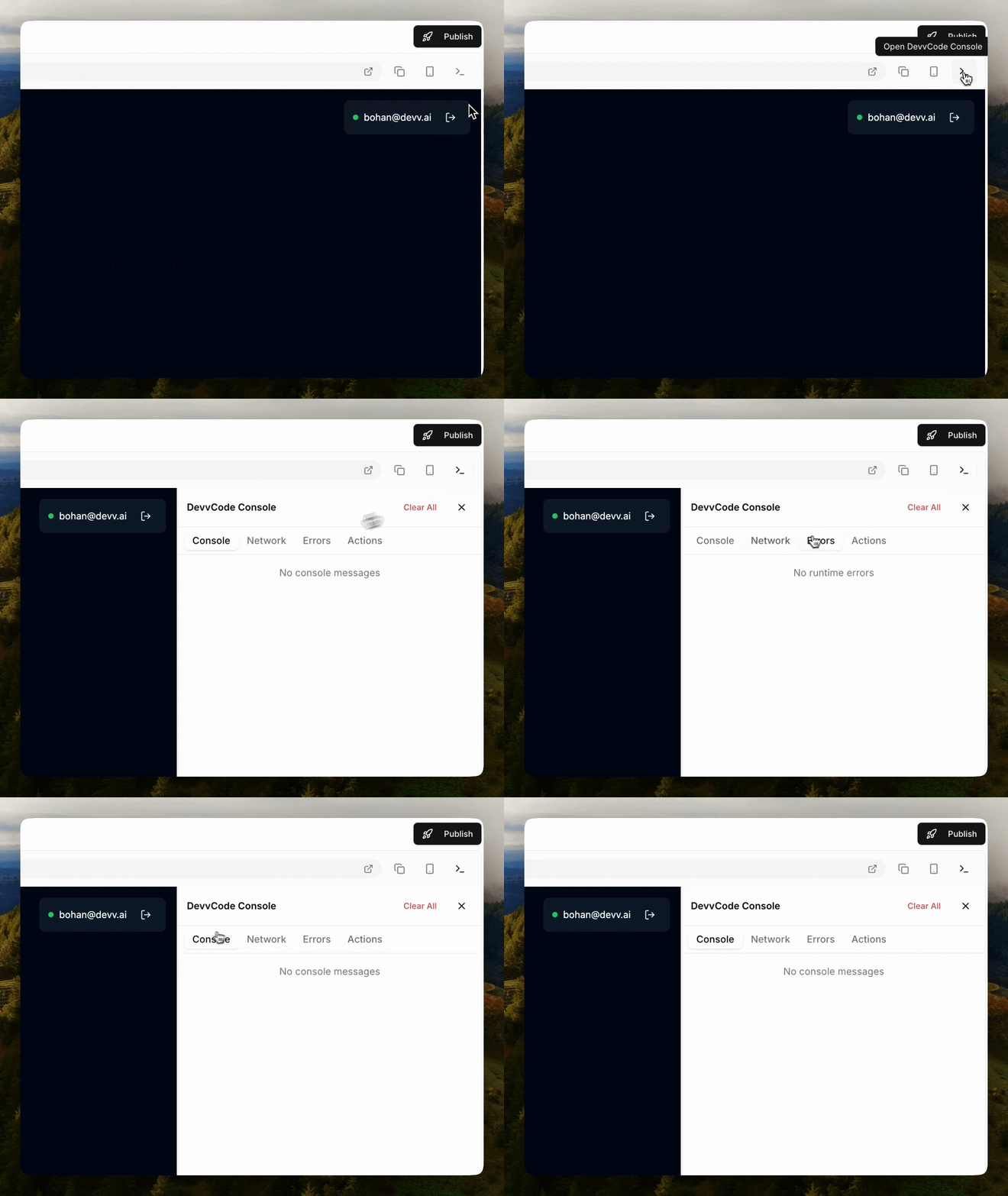
 To help you debug your project, Devv provides you with a developer console, where you can catch necessary information, including printed messages, network requests, errors and user actions.
 ## Use the Admin Dashboard
Devv provides an `Admin Dashboard` for project owners. Here you can do multiply actions towards your project.
## Use the Admin Dashboard
Devv provides an `Admin Dashboard` for project owners. Here you can do multiply actions towards your project.
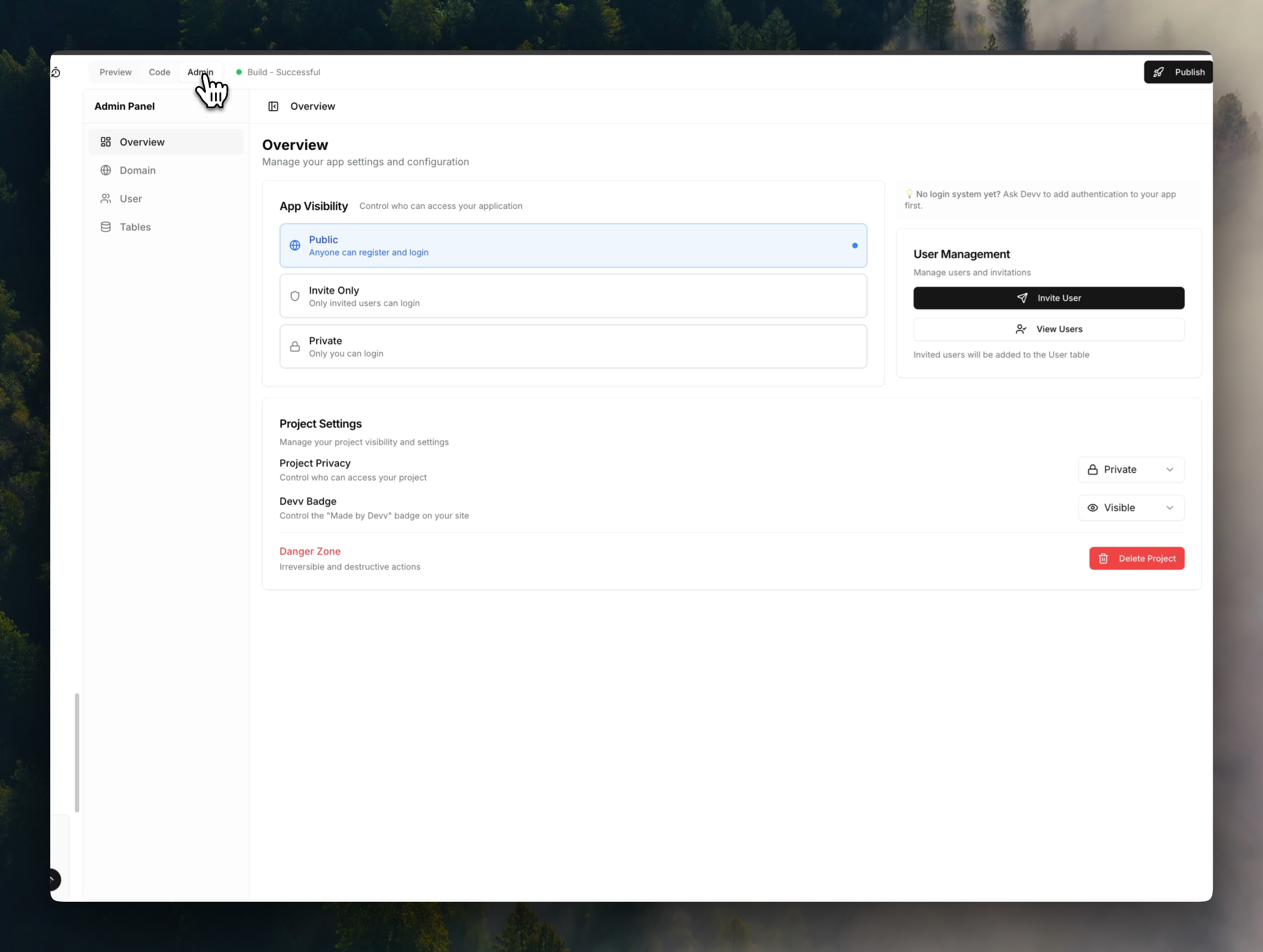 `App Visibility Rule` works after adding Authentication (i.e. User login
system) to your project. There are three different options here. You can
change it anytime by click it in your admin dashboard.
`App Visibility Rule` works after adding Authentication (i.e. User login
system) to your project. There are three different options here. You can
change it anytime by click it in your admin dashboard.
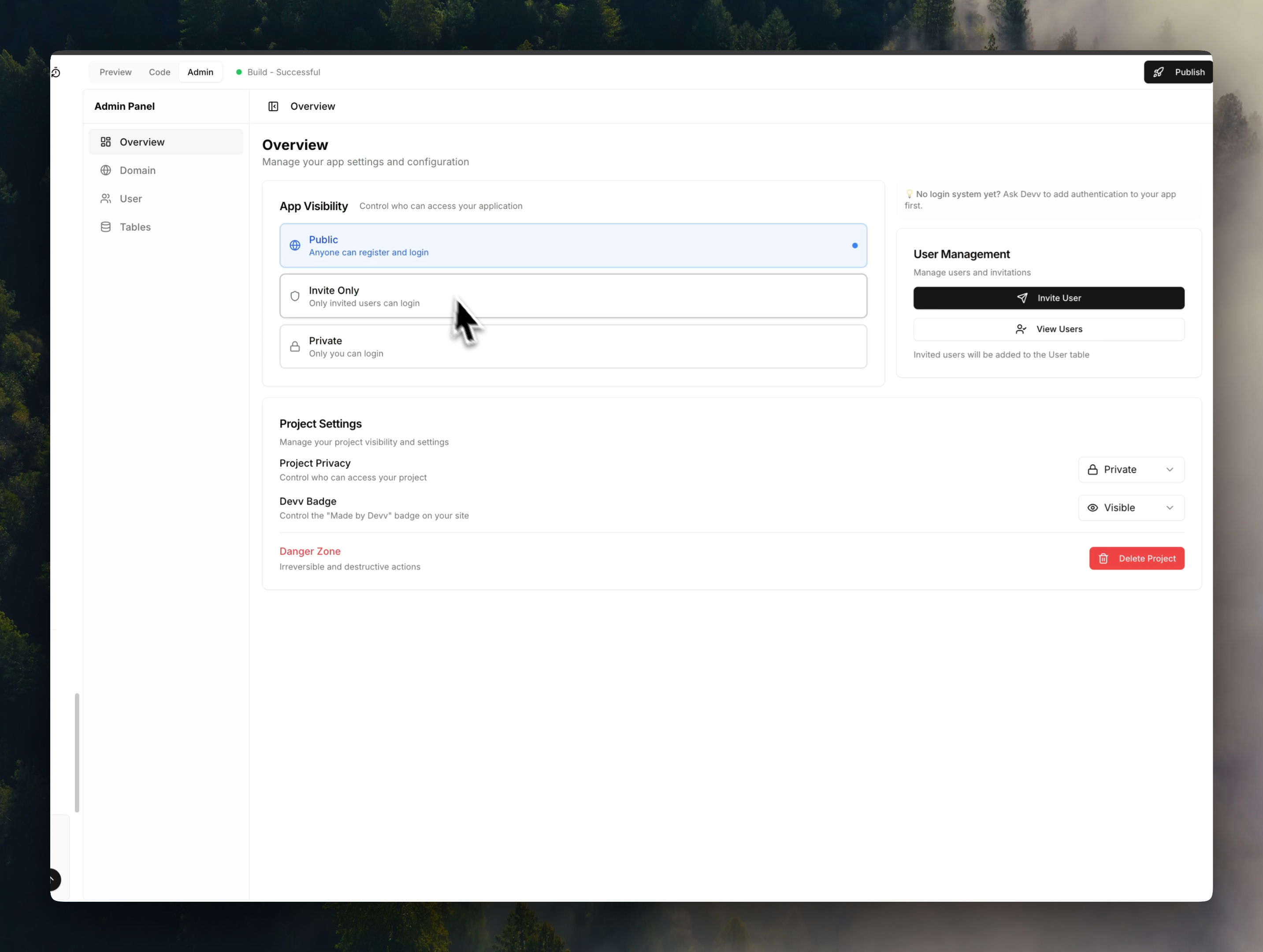 As the project owner, you are able to check and mange your project users.
Select the `User` tab in your Admin dashboard, you can check all users who have registered to
your website. Plus, you are able to invite or remove users manually here.
As the project owner, you are able to check and mange your project users.
Select the `User` tab in your Admin dashboard, you can check all users who have registered to
your website. Plus, you are able to invite or remove users manually here.
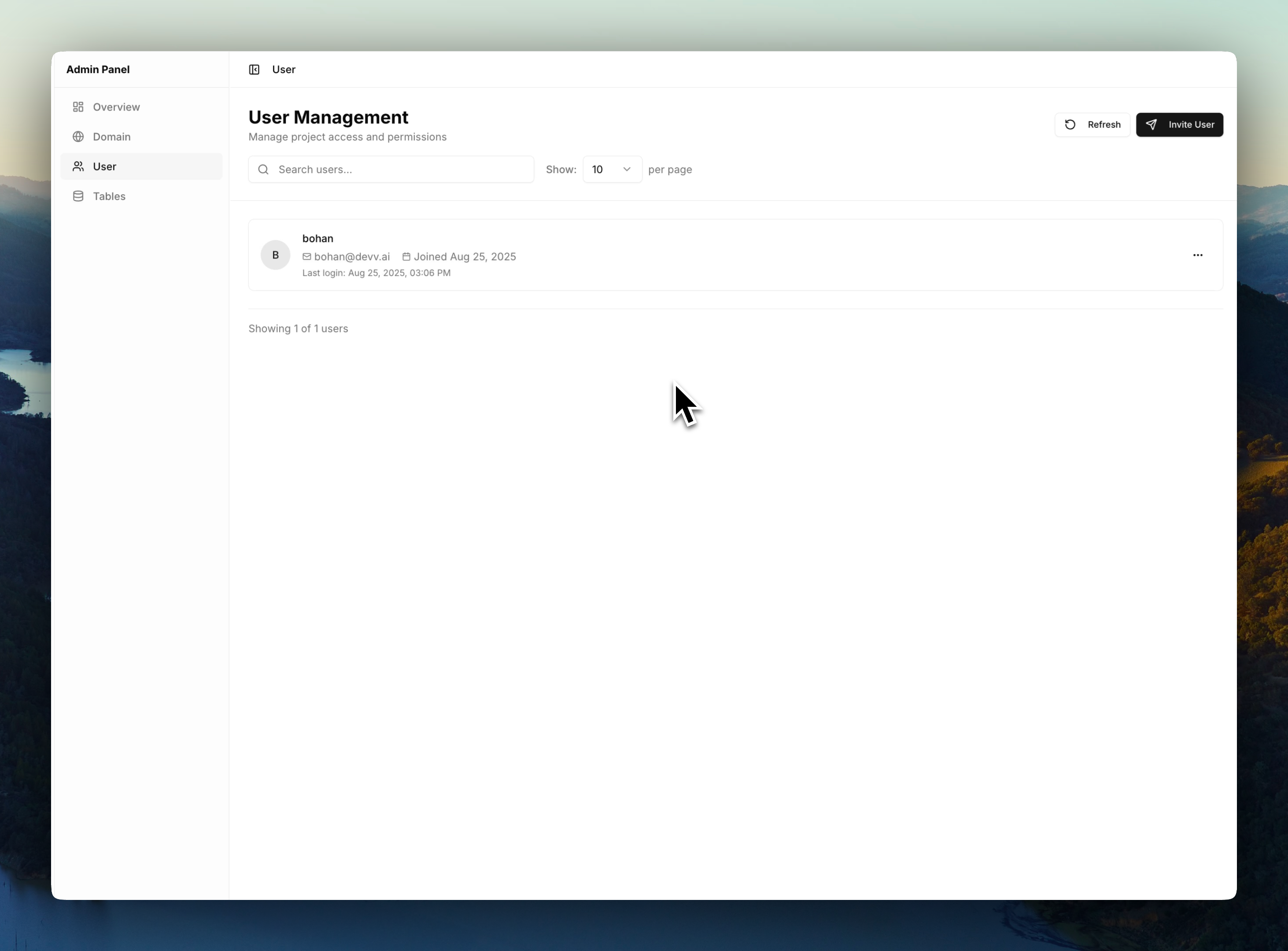 Select `Tables` tab in your admin dashboard, here you can:
1. Check all database tables, `view` all data and `edit` or `delete` any one them.
2. Check your `table schema`.
3. Change the `read and write permission` of each table.
Notice: We recommend to let Devv itself mange your database settings. **In most cases, you don't need to change any settings manually.**
## Deploy and Publish your project
In Devv, You can publish your project by `1-single-click`. Just use the
publish button on top right, and publish a new version when you make
modifications. You will get a public domain for your project once it
finished.
Select `Tables` tab in your admin dashboard, here you can:
1. Check all database tables, `view` all data and `edit` or `delete` any one them.
2. Check your `table schema`.
3. Change the `read and write permission` of each table.
Notice: We recommend to let Devv itself mange your database settings. **In most cases, you don't need to change any settings manually.**
## Deploy and Publish your project
In Devv, You can publish your project by `1-single-click`. Just use the
publish button on top right, and publish a new version when you make
modifications. You will get a public domain for your project once it
finished.
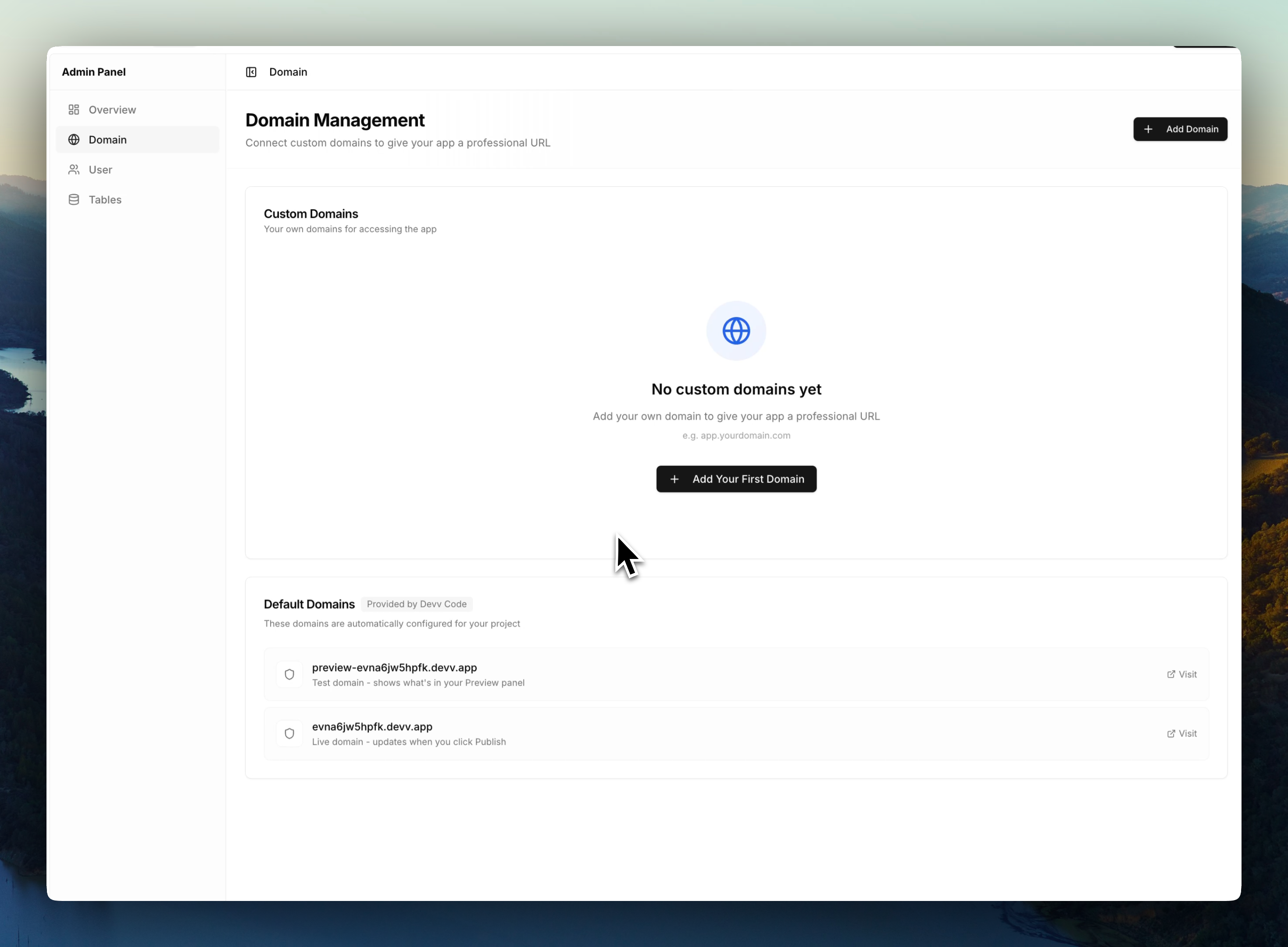
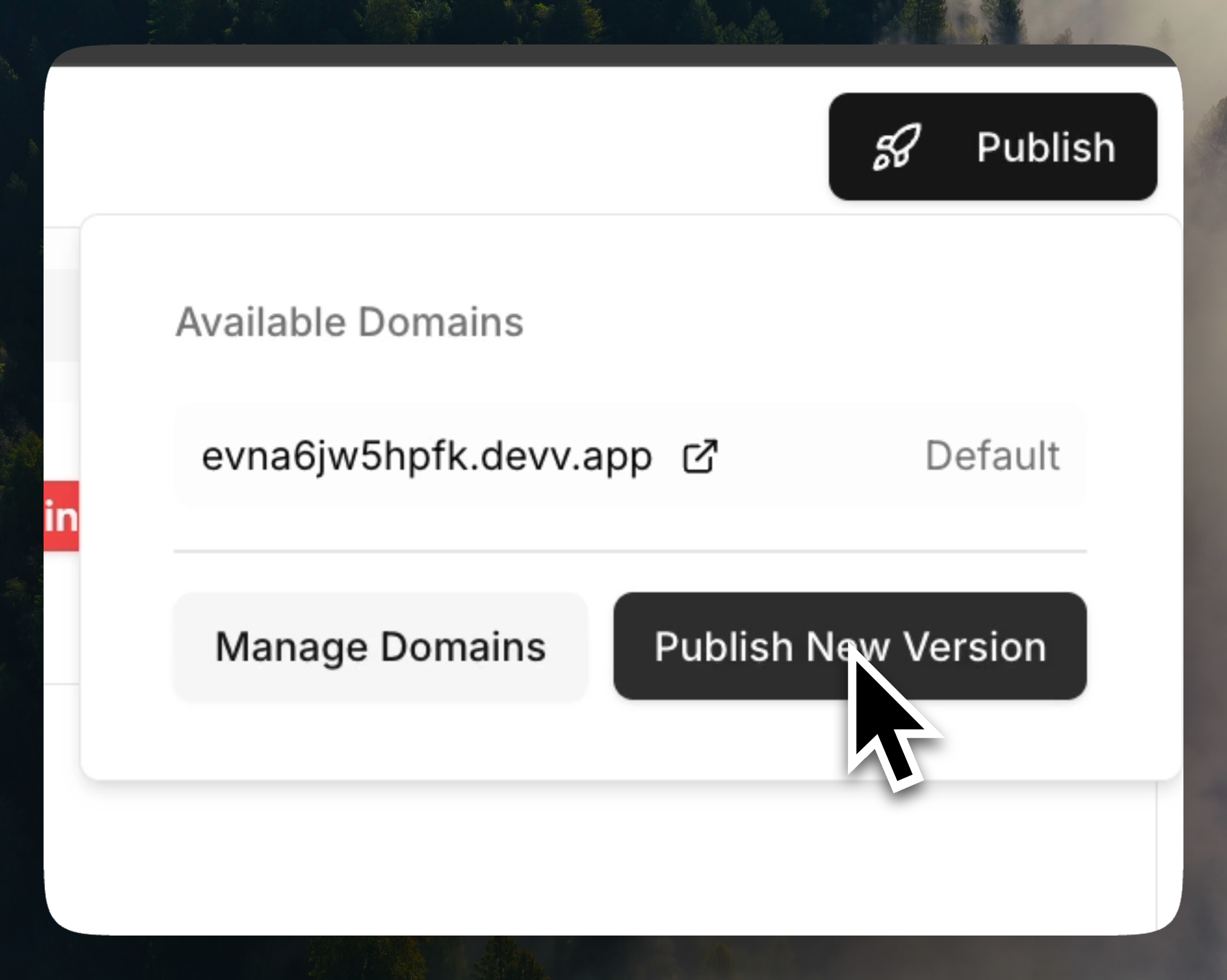 By default, you will get a random domain from Devv after publishing your
project. But yeah, a meaningful domain would be better for your users to
read and remember. Use `Domain` tab in your Admin panel to add custom
domain to your project.
By default, you will get a random domain from Devv after publishing your
project. But yeah, a meaningful domain would be better for your users to
read and remember. Use `Domain` tab in your Admin panel to add custom
domain to your project.